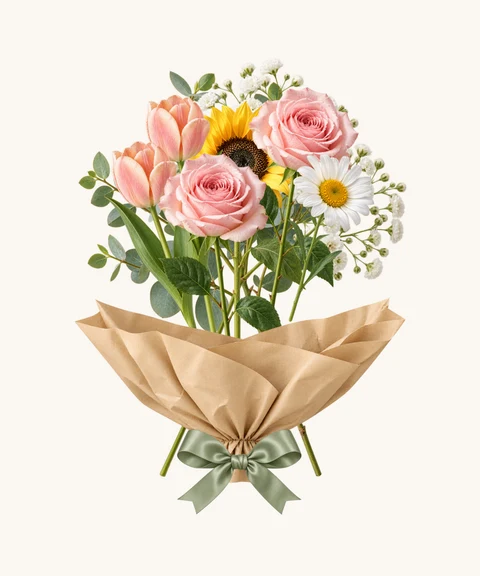
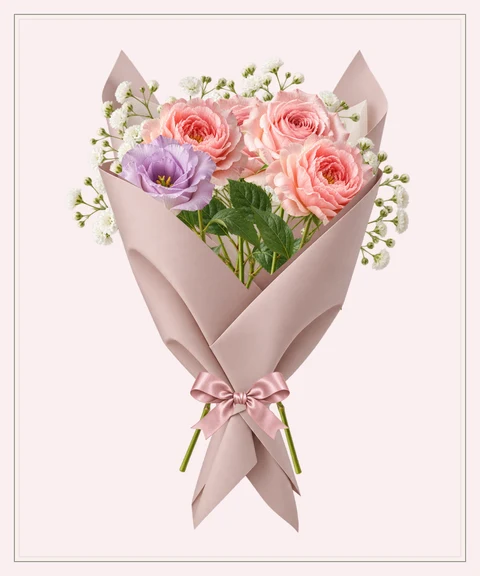
Start with a flower, or a little inspiration
The homepage opens straight into the maker. Choose your first flower to start a draft, then add or remove stems with the quantity controls. You can mix up to 12 flowers and add up to six greenery stems.
If you have an occasion in mind, open Templates first. Filter by occasion and by Bouquets or Baskets. Every design opens directly at Step 2 · Style with its complete arrangement and blank message fields. Choose Flowers or Change flowers & quantities to return to Step 1. Homepage showcase designs work the same way: you edit an independent copy without the original recipient or words.
Follow the four steps
The four steps are Flowers, Style, Message and Share. You can return to any step. Changes stay in your local draft until you explicitly create or update a gift link.
- Flowers: choose your flowers and quantities. Open each flower’s description for its meaning and suggested occasions.
- Style: choose a wrapped bouquet or basket, add greenery and adjust the arrangement. Choose wrapping paper for a bouquet, or leave the stems unwrapped. Ribbons are available for bouquets and baskets. Choose the frame and background here, too.
- Message: add optional To, From and Short note fields. Choose Classic cream, Soft paper or Minimal border for the short card. A longer letter appears inside the shared gift after the envelope opens; it is not printed in a PNG.
- Share: preview the envelope opening. Create a gift link with a QR code when publishing is available, or prepare and download a PNG.
Make it feel like yours
Try one main flower and a small supporting group before adding more. Choose Open & airy, Soft & round or Tall & natural, then drag individual flowers. On a phone, choose Arrange to expand the preview first. Fine-tune this stem offers movement, rotation and size controls. Reset arrangement restores the selected layout; Undo reverses your last change.
A template is a starting point, not a fixed picture. Its editable arrangement stays in Saved with your message, so you can return to it in the same browser.
Preview the envelope, then share
In Share, choose Preview recipient’s gift to try the envelope opening and read the flowers, short card and longer letter. Close the preview to make any changes.
Review the optional homepage showcase setting, then choose Create gift link. New gifts have showcasing selected by default; you can switch it off and still create a link. The showcase includes only your design and public name, never your recipient or words.
The recipient link appears above Copy link, with a QR code ready to download. Links last 30 days from creation. Keep the separate private editing link for updates or revocation. You can also prepare and download a PNG without creating a link; check a fresh PNG preview after changing the design.